
Posts by SwiftCheckout team
The 5-Minute Privacy Audit for Your WooCommerce Checkout
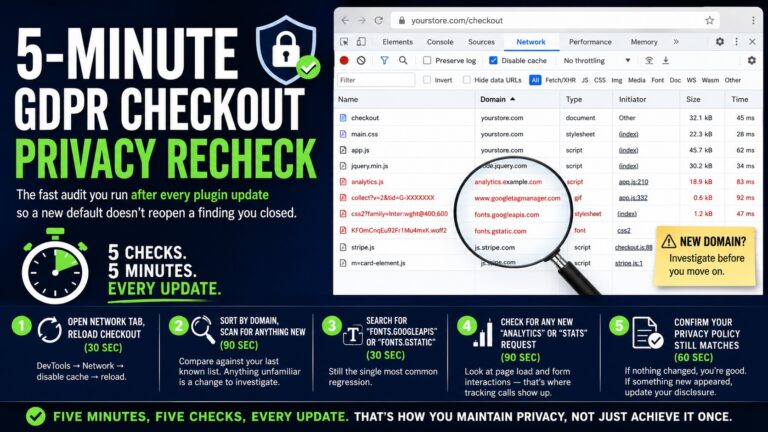
You already did the full audit once. This is the fast version — the one you actually run every time a plugin updates, so a new default setting doesn’t quietly reopen a finding you already closed. A full GDPR checkout audit is worth doing once, thoroughly. But plugin updates happen constantly, and any one of…
Lue lisääFree Checklist: 12 Things to Fix on Your WooCommerce Checkout Before Running Another Ad
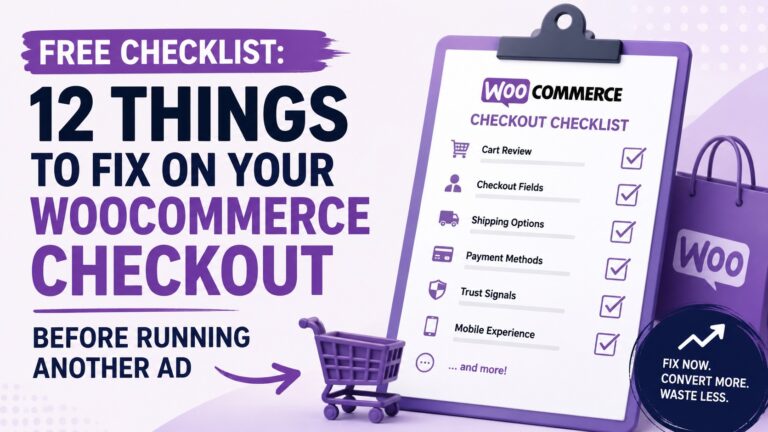
Every euro you spend on ads ends at your checkout page. Not at your homepage. Not at your product page. At checkout. And if your checkout has friction, confusion, or hidden data flows you don’t fully understand — you’re not just losing conversions. You’re losing trust. From your customers, and from yourself. Before you increase…
Lue lisääWhat a 3-Step Checkout Does to Cart Abandonment (The Psychology Behind Guided Forms)
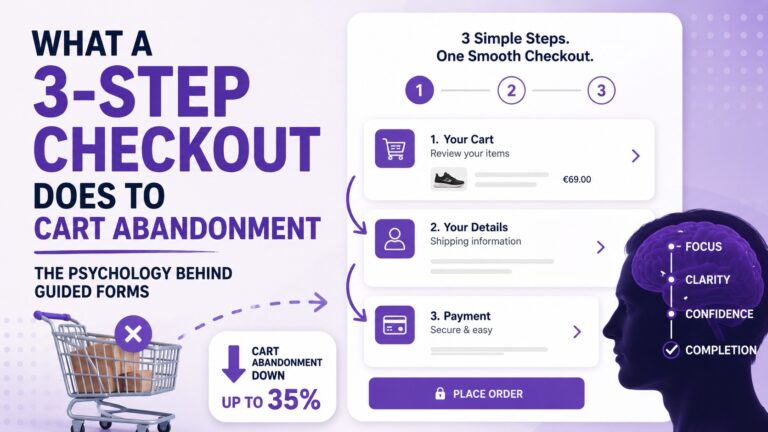
Most store owners blame pricing when customers leave without buying. They run discount campaigns, tweak product descriptions, and add urgency banners — then wonder why the numbers barely move. Meanwhile, the actual problem sits one click past “Add to Cart,” on a checkout page that quietly drives people away every single day. Why Shoppers Abandon…
Lue lisääSwift Checkout vs. CheckoutWC: Same Conversion Features, Half the Price, Zero Telemetry
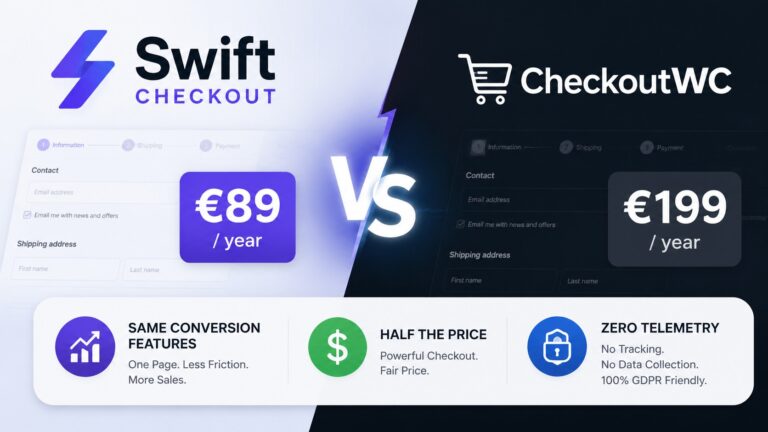
You’ve already decided WooCommerce’s default checkout needs to go. The question now is which replacement plugin actually earns your money. This comparison exists for one reason: if you’re currently paying for CheckoutWC or about to click purchase, you deserve a direct, honest look at what each option gives you — and what each one does…
Lue lisääGDPR-Safe WooCommerce Checkout: What Most Plugins Get Wrong
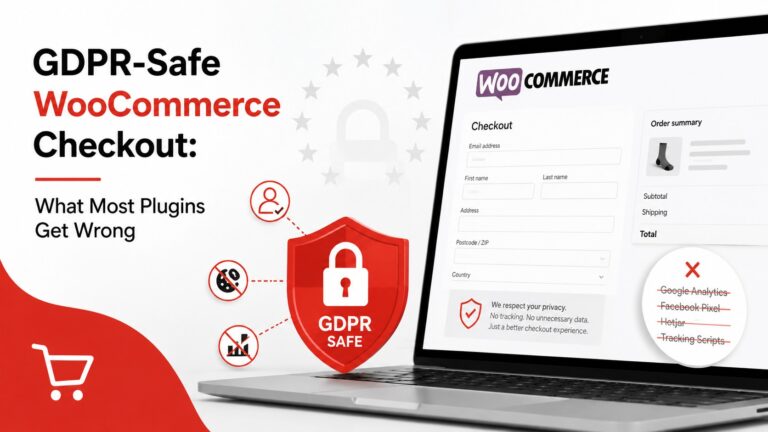
Most EU store owners believe they’ve handled GDPR by installing a cookie consent plugin. They haven’t — at least not completely. In 2025, Europe’s data protection authorities issued approximately €1.2 billion in GDPR fines DLA Piper GDPR Fines and Data Breach Survey, January 2026), and enforcement is increasingly targeting the mechanics of how sites process…
Lue lisääCheckoutWC Alternatives for WooCommerce: An Honest Comparison
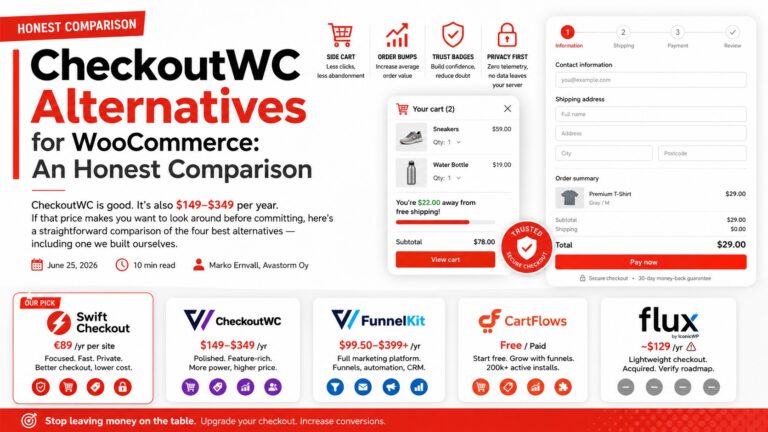
CheckoutWC is good. It’s also $149–$349 per year. If that price makes you want to look around before committing, here’s a straightforward comparison of the four best alternatives — including one we built ourselves. In this article Why merchants look for CheckoutWC alternatives What to look for Swift Checkout — Best value, privacy-first FunnelKit —…
Lue lisääOne-Page vs. Multi-Step Checkout: Which Actually Converts Better for WooCommerce Stores?
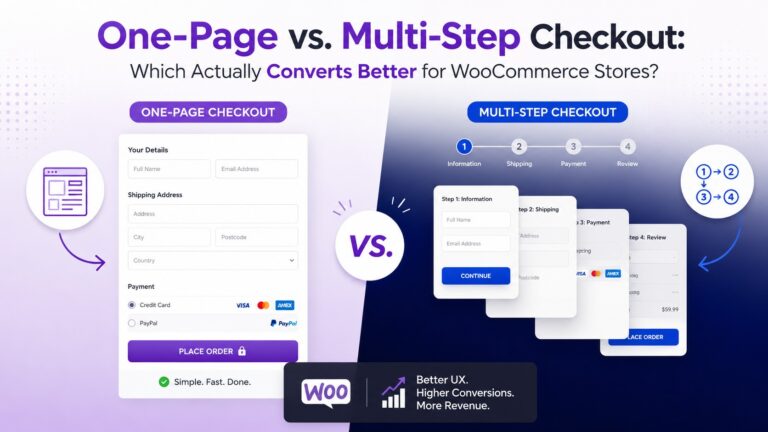
Every WooCommerce store owner eventually faces this question. And almost everyone gets the answer wrong — because they’re asking the wrong question in the first place. The Debate That Misses the Point Search for “one-page vs. multi-step checkout” and you’ll find a pile of conflicting advice. Some studies say one-page checkout increases conversions by 21%.…
Lue lisääSettings overview
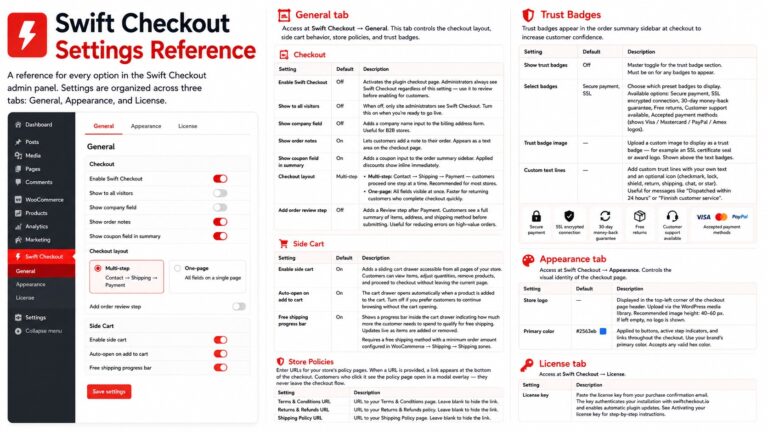
A reference for every option in the Swift Checkout admin panel. Settings are organized across three tabs: General, Appearance, and License. General tab Access at Swift Checkout → General. This tab controls the checkout layout, side cart behavior, store policies, and trust badges. Checkout Setting Default Description Enable Swift Checkout Off Activates the plugin checkout…
Lue lisääQuick start guide
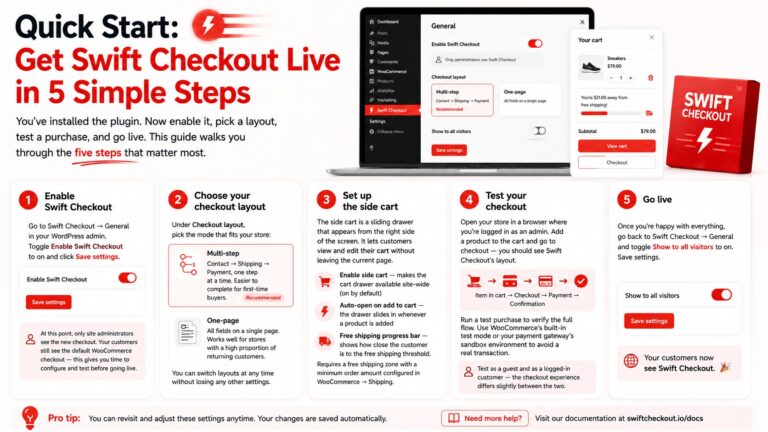
You’ve installed the plugin. Now enable it, pick a layout, test a purchase, and go live. This guide walks you through the five steps that matter most. 1. Enable Swift Checkout Go to Swift Checkout → General in your WordPress admin. Toggle Enable Swift Checkout to on and click Save settings. At this point, only…
Lue lisääActivating your license key
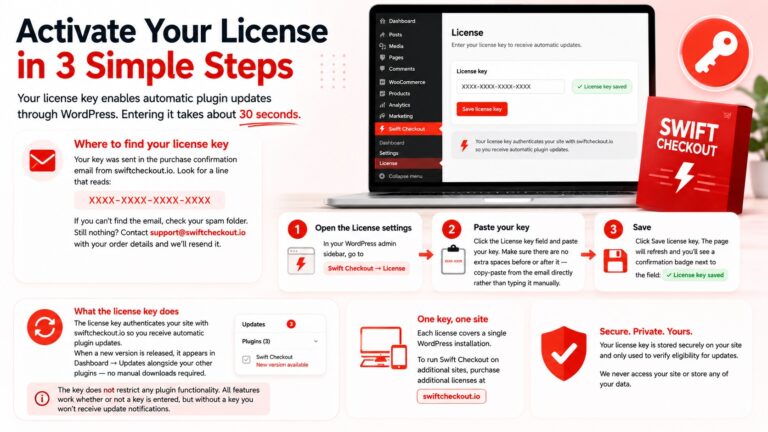
Your license key enables automatic plugin updates through WordPress. Entering it takes about 30 seconds. Where to find your license key Your key was sent in the purchase confirmation email from swiftcheckout.io. Look for a line that reads: XXXX-XXXX-XXXX-XXXX If you can’t find the email, check your spam folder. Still nothing? Contact support@swiftcheckout.io with your…
Lue lisää