
You’ve installed the plugin. Now enable it, pick a layout, test a purchase, and go live. This guide walks you through the five steps that matter most.
1. Enable Swift Checkout
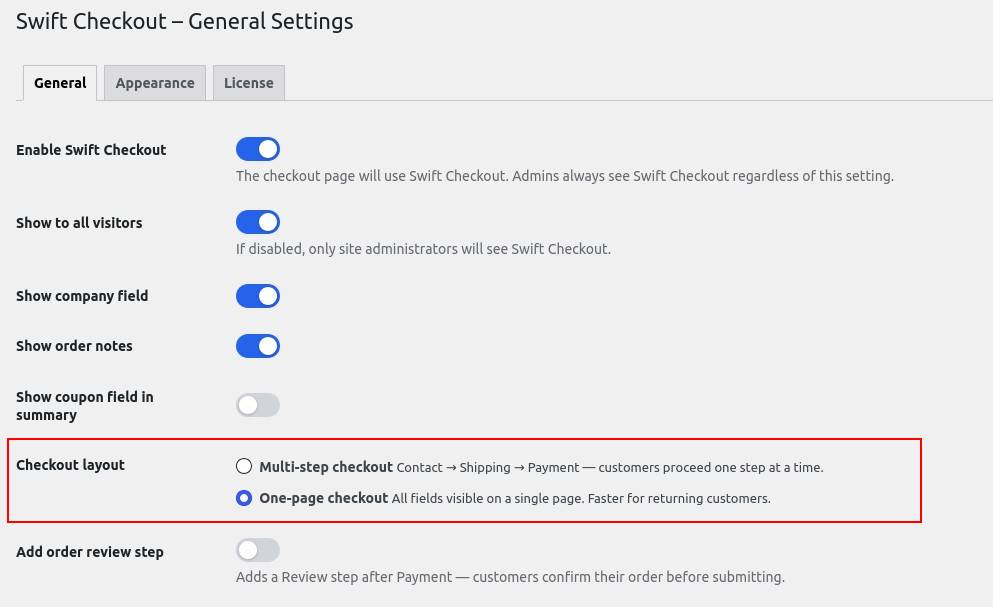
Go to Swift Checkout → General in your WordPress admin. Toggle Enable Swift Checkout to on and click Save settings.
At this point, only site administrators see the new checkout. Your customers still see the default WooCommerce checkout — this gives you time to configure and test before going live.
2. Choose your checkout layout
Under Checkout layout, pick the mode that fits your store:
Multi-step
Contact → Shipping → Payment, one step at a time. Easier to complete for first-time buyers.
One-page
All fields on a single page. Works well for stores with a high proportion of returning customers.
You can switch layouts at any time without losing any other settings.
3. Set up the side cart
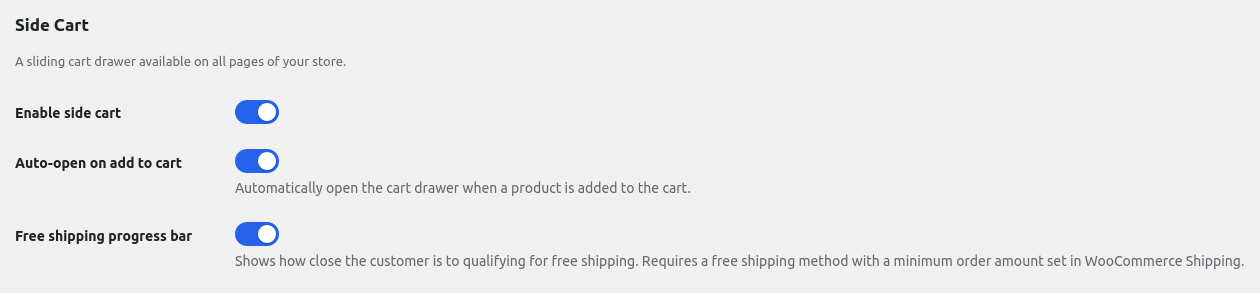
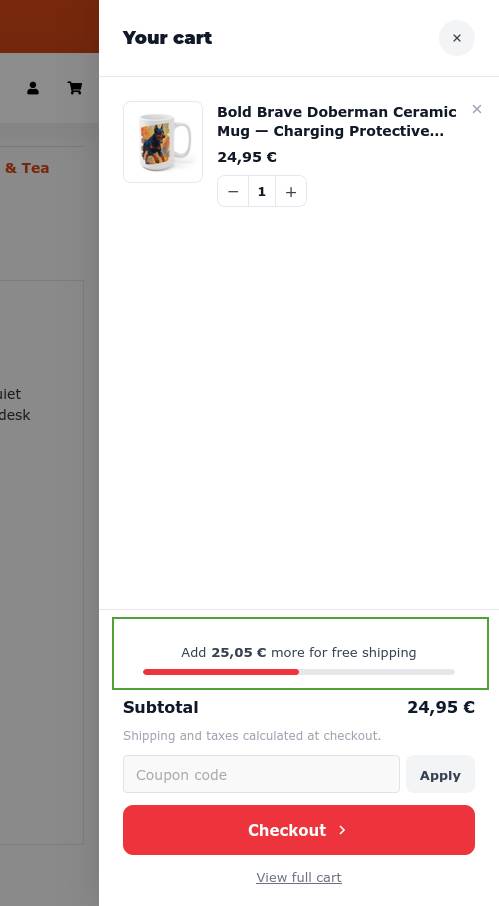
The side cart is a sliding drawer that appears from the right side of the screen. It lets customers view and edit their cart without leaving the current page.
- Enable side cart — makes the cart drawer available site-wide (on by default)
- Auto-open on add to cart — the drawer slides in whenever a product is added
- Free shipping progress bar — shows how close the customer is to the free shipping threshold. Requires a free shipping zone with a minimum order amount configured in WooCommerce → Shipping.
4. Test your checkout
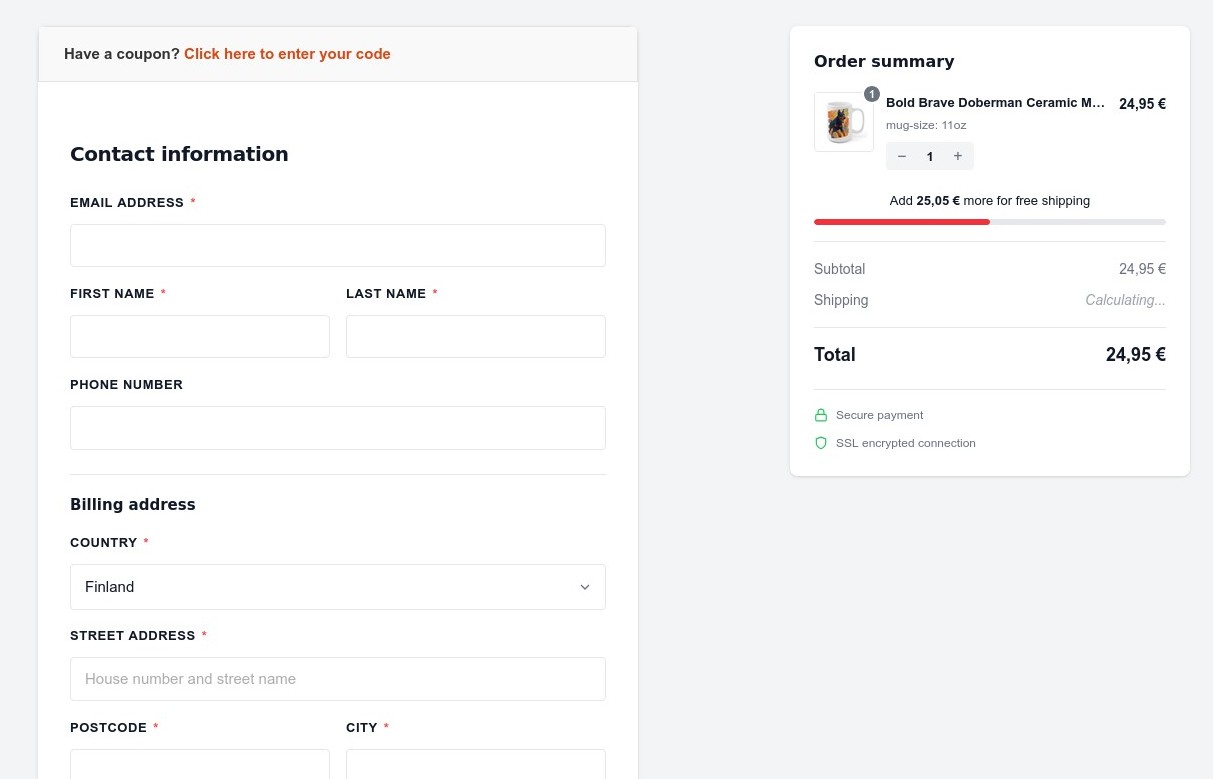
Open your store in a browser where you’re logged in as an admin. Add a product to the cart and go to checkout — you should see Swift Checkout’s layout.
Run a test purchase to verify the full flow: item in cart → checkout → payment → confirmation. Use WooCommerce’s built-in test mode or your payment gateway’s sandbox environment to avoid a real transaction.
5. Go live
Once you’re happy with everything, go back to Swift Checkout → General and toggle Show to all visitors to on. Save settings.
Your customers now see Swift Checkout.
See what your own checkout is sending — before a customer, client, or regulator asks.
SwiftCheckout replaces WooCommerce's default checkout with a guided 3-step flow. No telemetry, no external font calls, no admin upsells.
Zero telemetry · GPL licensed · Live in under 30 minutes
Try SwiftCheckout on your store →Takes about 10 minutes to install. Nothing runs in the background you weren't told about.
Stop leaving money at the checkout page.
Every day with a broken checkout is revenue you earned but didn't keep. Fix it today for €89.